
Solutions / Security teams
A gate register that keeps itself.
Guards register walk-ins with a photo, check QR and OTP passes, log parcels and domestic staff, and answer SOS alerts, from a high-contrast app that keeps working when the network drops.
- Guard tabs
- Gate · Visitors · Staff · SOS · Account
- Access
- Guard role assigned by your admin
- On a weak network
- Gate entries queue and sync


Screens from Godavari Heights CHS, a sample society.
What the gate deals with, every shift
The guard is the society’s front desk, courier room and alarm, usually with a notebook and an intercom.
Walk-ins
At most gates today: A name in a notebook and an intercom call nobody answers.
With OGSetu: Pick guest, delivery, cab or service, enter the name, phone and flat, take a photo. The resident approves or denies on their phone.
Expected guests
At most gates today: “Someone from 402 said it was fine.”
With OGSetu: Pre-approved guests show a QR code or six-digit OTP. Scan or type it; expired or revoked passes are rejected.
Parcels
At most gates today: A pile of boxes in the cabin and a list on paper.
With OGSetu: Log each parcel against a flat, the residents are notified, and hand it over with an optional OTP.
Domestic staff
At most gates today: Maids and drivers signed in from memory.
With OGSetu: Each worker has a pass code. The guard types it to record check-in and check-out.
The gate, from both sides
What a resident shares reaches the gate, and what the guard records reaches the flat. These are the real screens.
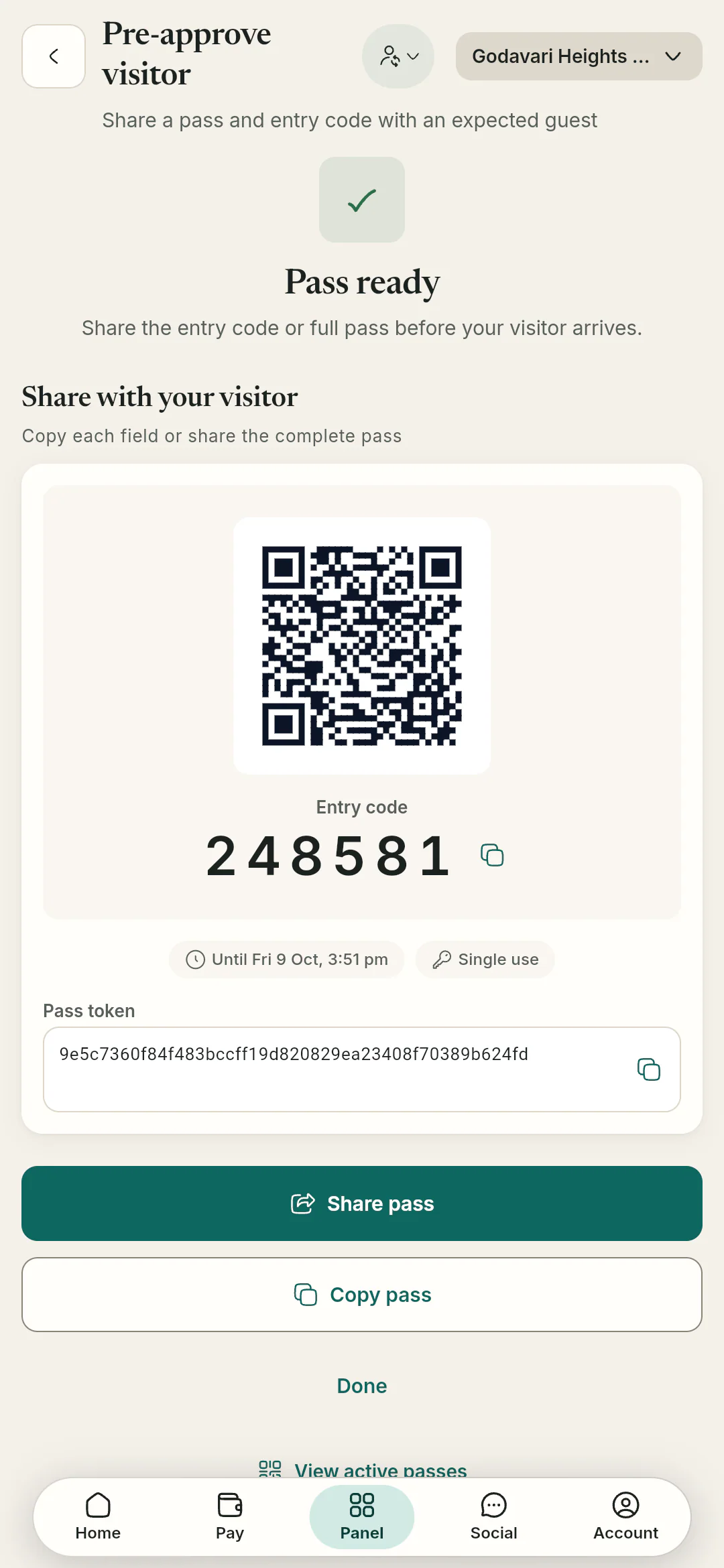
Visitors · resident’s screen A pass, shared ahead
The resident creates a pass with a QR code and a six-digit code, and shares it with the guest.
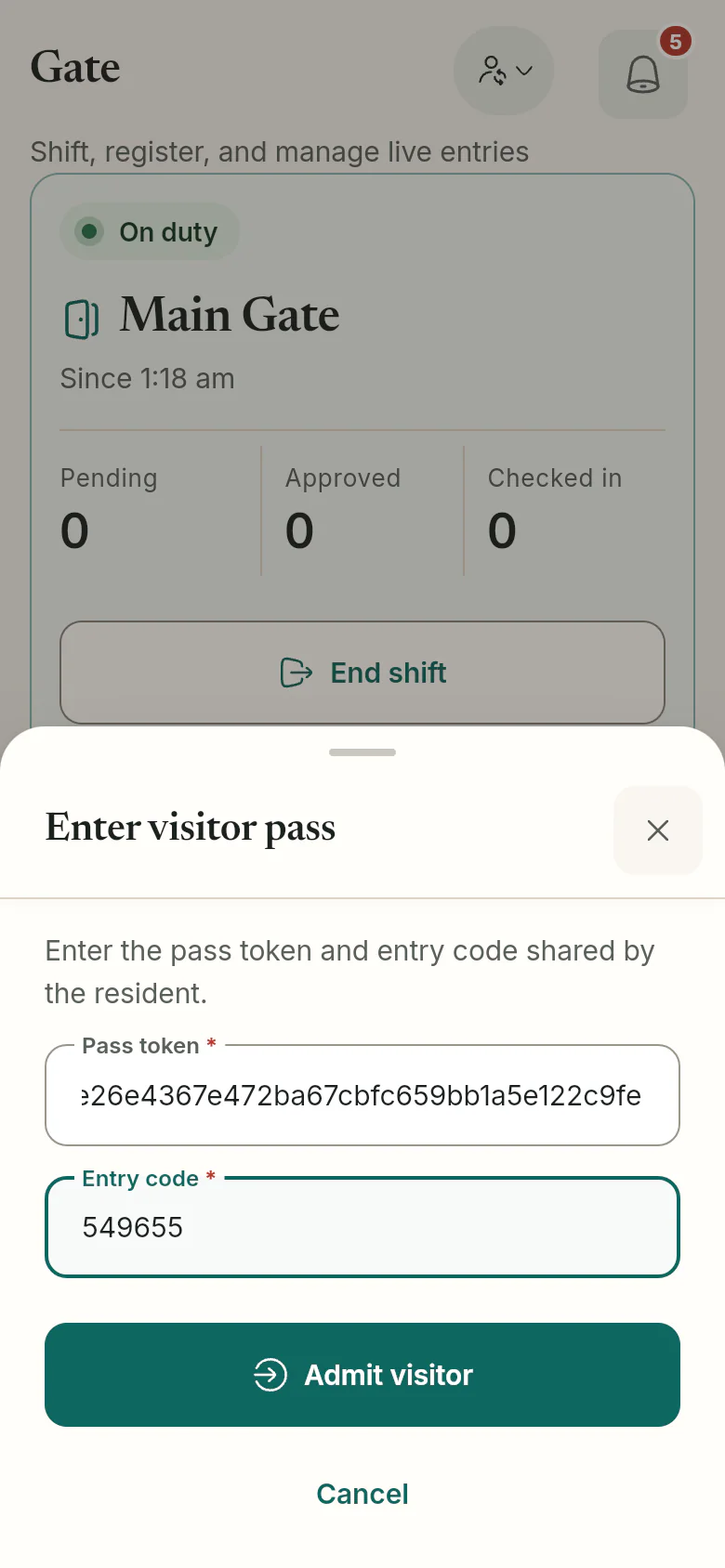
Gate · guard’s screen The guard checks it
The guard scans the QR or types the pass token and code. Expired or revoked passes are rejected.
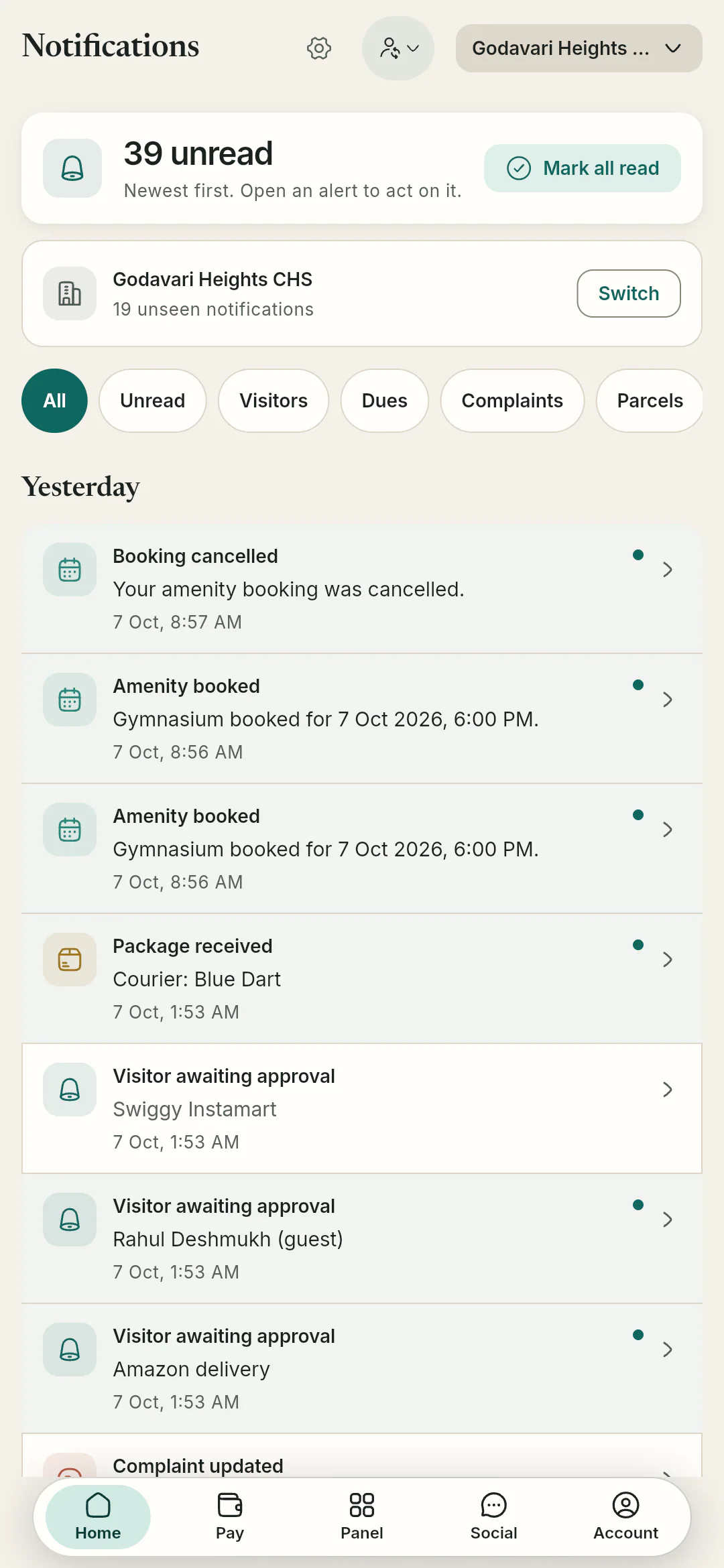
Notifications · resident’s screen The flat answers walk-ins
When the guard registers a walk-in, the flat is notified and the resident approves or denies.
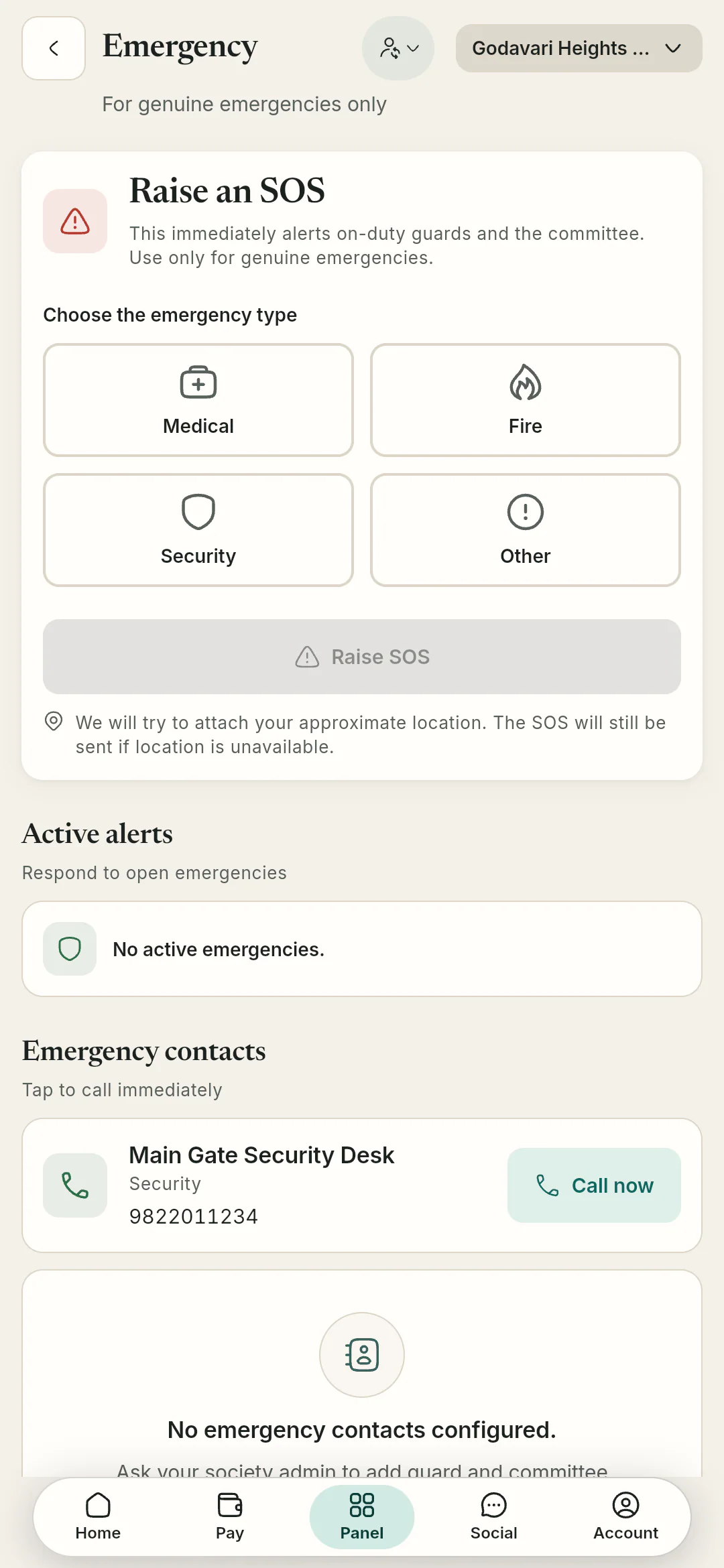
SOS · resident’s screen Alerts reach the gate
A resident’s SOS goes to on-duty guards and the committee, even in their quiet hours.


What the guard app does
A standard, high-contrast navigation bar and large targets, built for a phone at the gate.
Shifts at a gate
A guard starts and ends a shift at a specific gate and sees who is waiting and who is inside. Societies can run several gates.
- Start and end shift per gate
- Waiting and inside counts
- Add, edit or close gates
Visitor check-in and check-out
Walk-ins with a photo and resident approval; passes by QR scan or typed code; delivery partners and cabs have their own types.
Gate & visitors in detail- Check in and check out
- Delivery “leave at gate”
- Stale visitors checked out automatically
Visitor blacklist
Match by phone number, vehicle or name. The check runs when a visitor is registered and when a pass is used.
- Phone, vehicle or name
- Checked at registration
- Checked when a pass is used
Parcels and domestic staff
Parcels are logged against a flat with an optional OTP handover. Domestic staff check in and out by pass code.
Operations in detail- OTP pickup with lockout
- Mark parcels returned
- Staff attendance by pass code
SOS and a gate that works offline
SOS alerts move from active to acknowledged to resolved or false alarm. Gate registration, check-in and check-out, parcels and staff attendance queue on the phone when the network drops.
- Medical, fire, security or other
- Push that ignores quiet hours
- Offline outbox for gate actions
How guards get access
Guards use the same app as everyone else; the role decides what they see.
Step 1: Your society is on OGSetu
The OGSetu team sets it up with your committee, and the admin adds your gates.
Step 2: Each guard signs in with Qviple
Their own Qviple account, by password or OTP. The account is free.
Step 3: The admin assigns the guard role
Once the guard is a member of the society, the admin gives them the guard role and the gate tabs appear.
Step 4: Start a shift at a gate
The guard picks their gate, starts the shift and the register is open.
Questions about the gate
All questionsRegistering visitors, checking them in and out, logging parcels and recording staff attendance queue on the phone and sync when the connection returns.
A phone with a camera, for visitor photos and QR scans, and their own Qviple account. OGSetu is built for Android, iOS and the web.
No. Guards get the Gate, Visitors, Staff, SOS and Account tabs only, and every action is checked on the server against their role. Guards also don’t get the Social tab.
Each guard starts and ends their shift at a gate and sees their own duty status. A committee roster view and shift handover notes are not in the app yet.
Yes. Every screen a guard uses is in English, Hindi and Marathi, like the rest of the society app.